

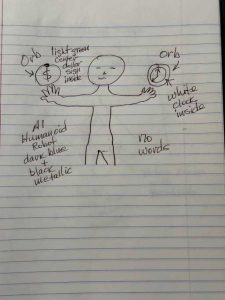
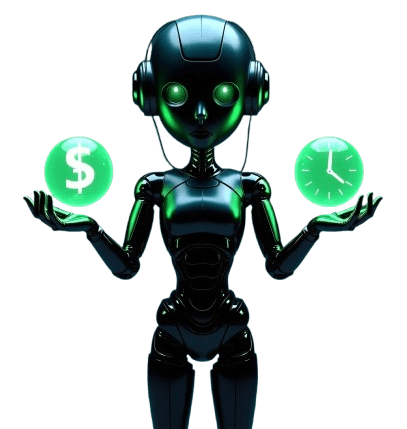
 Grab a piece of paper – lined or not, doesn’t matter – and think of something you’d love to use for your business. Don’t stress about your drawing skills. Mine look like they belong on a fridge, and it still works!
At the top of your drawing, write what kind of image you want. Maybe “hyper realistic,” “cartoon,” or “transparent background.” Then sketch your idea – basic shapes only. Add short notes like blue glowing orb, digital screen, no words on image.
Upload it, give AI a few clear prompts, and watch it bring your idea to life. This quick method lets you turn thoughts into visuals in minutes – perfect for ads, social media, or eBook covers.
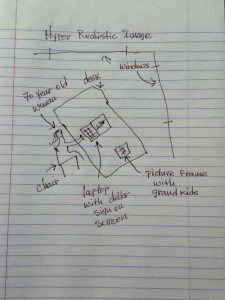 Let’s say you teach seniors how to make money online.
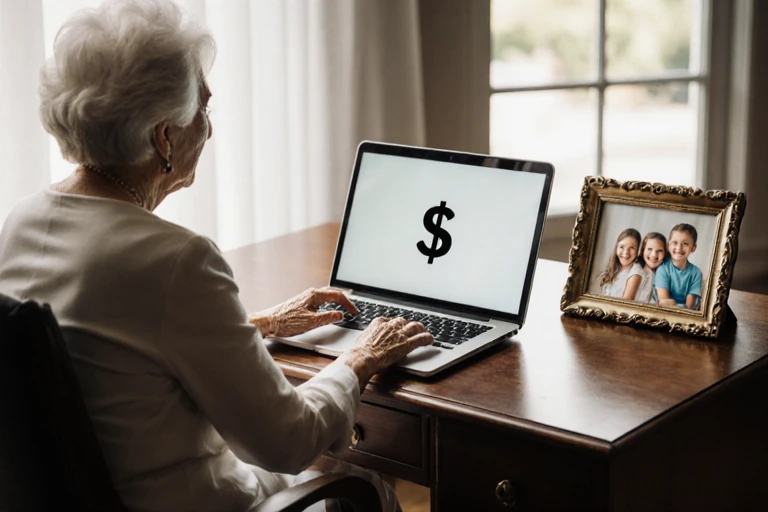
You could sketch something simple like an older woman at a desk with her laptop, a few photos of grandkids, and maybe a sunny window behind her.
Even if your handwriting looks like chicken scratch, AI reads and understands it.
It sees the idea and creates a stunning, hyper-realistic version of what you meant.
From there, you can ask for more color, a different camera angle, or any tweak you want.
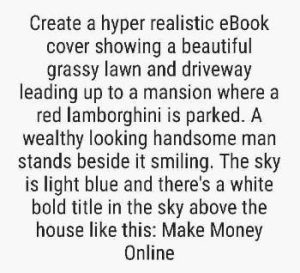 Open your Notes app. Use the drawing feature to sketch, type instructions, or add prompt right there.
It might look like a child’s art project, but AI doesn’t care – it just needs direction.
Mark where you want each element, and label it. Title here. Person here. Mansion in the background.
Then upload it and let AI do its thing.
 Once you see the result, that’s your chance to fine-tune.
Want the font to stand out more? Ask. Want the man to look a little older or the house more luxurious? Say so. AI listens.
Before you know it, you’ve got a professional-looking eCover – all from a quick doodle and a few words.
 Here’s another fun way to use this.
If you’re an affiliate marketer or dropshipper, you’ve probably seen boring product shots online – just a bottle, gadget, or box sitting there. But you can make it better.
Tell AI what you want: “A hyper realistic image of a woman applying the product while smiling in a bright, luxury bathroom.” Done.
If the product uses a pump, just mention that. AI fixes it instantly. Want a different outfit, background color, or lighting? Easy. You’re now in total creative control – no fancy camera needed.
AI images used to be clunky, unpredictable, and often off the mark. But those days are gone. You don’t need to pay extra for other tools like Midjourney or Ideogram anymore. It’s all built right into ChatGPT – ready to create whatever you imagine.
And if you’re not sure what to include when sketching, here’s what AI says helps most:
1. Subject Details – Who or what is in the image, age, color, material, emotion, or pose.
2. Object Positioning – Use arrows or boxes to show layout and direction.
3. Background & Environment – Where it’s set and what’s around it.
4. Specific Elements – Details like holograms, icons, or props.
5. Colors & Style – Bright or dark? Modern or warm?
6. Text Instructions – Add any words you want in the image (or tell AI not to).
7. Final Notes – What to leave out, transparency needs, and format type.
Don’t overthink it. Just sketch, label, and let AI do the rest.
Now you’ve got the power to turn your ideas into eye-catching visuals that sell, attract clicks, and make your brand stand out.
So grab that paper (or your Notes app) and start creating your first AI image today – you’ll be amazed at what you can do!