

Google Drive is more than a place to dump files. It’s a tool that helps you stay organized, share assets, and run your online business with less stress.
If you’re an online marketer, affiliate, or product creator, Drive can be your central hub for campaigns, content, and teamwork. Here’s a full step-by-step article to get you up and running.
1. Create or log in to your Google account.
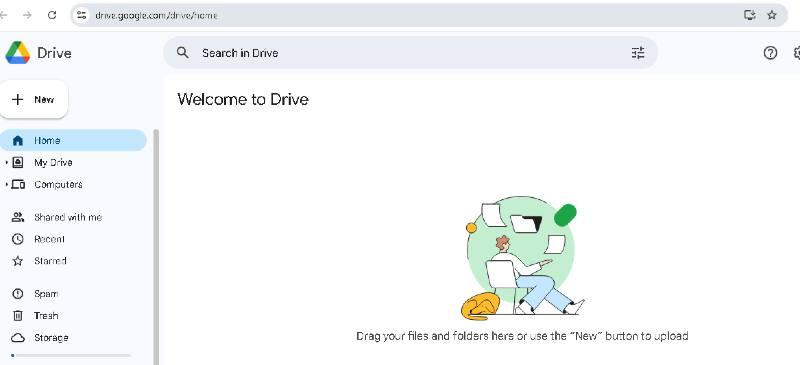
2. Go to [drive.google.com](https://drive.google.com).
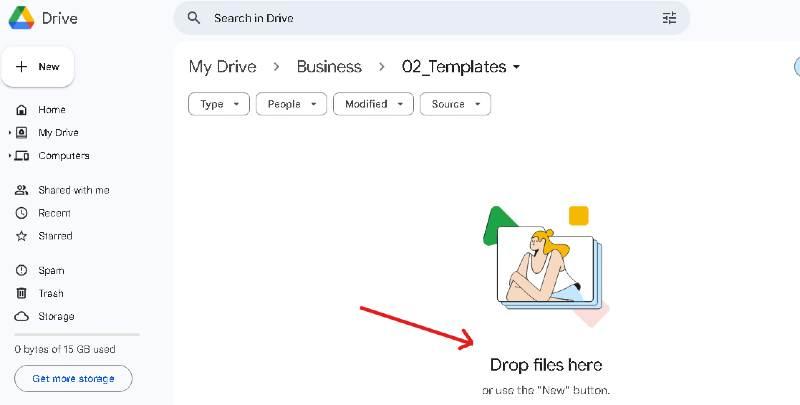
3. Click New > Folder. Name it Business. This will be your main hub.
4. Install Drive for desktop if you want automatic backup. Choose Stream to save space or Mirror to keep local copies.
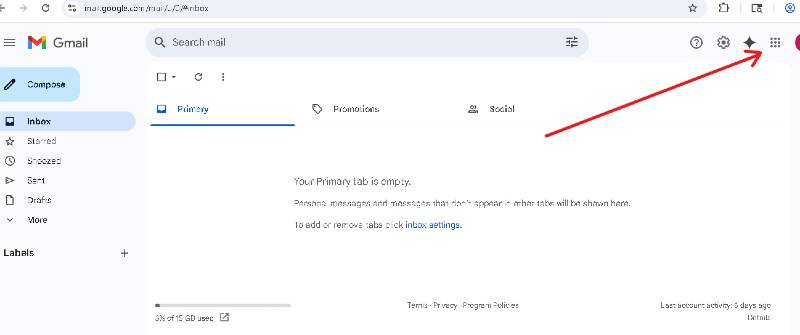
From the image below, Click on the Google Apps cluster in top right corner of your Google Account.
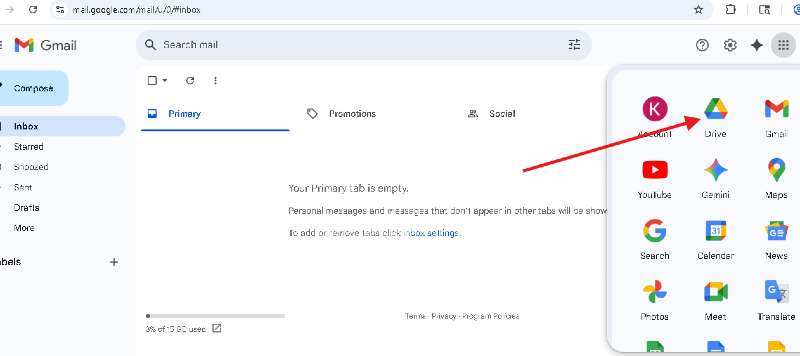
Next, Click on the Drive App Icon.
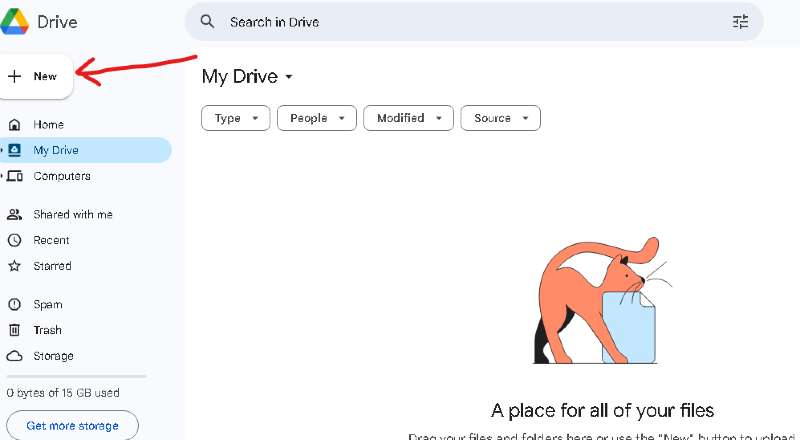
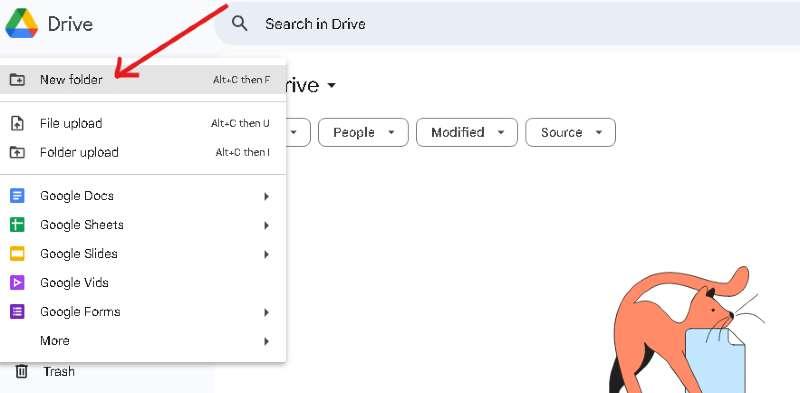
Click on the “New” button in the top left corner.
From there, click on “New Folder”
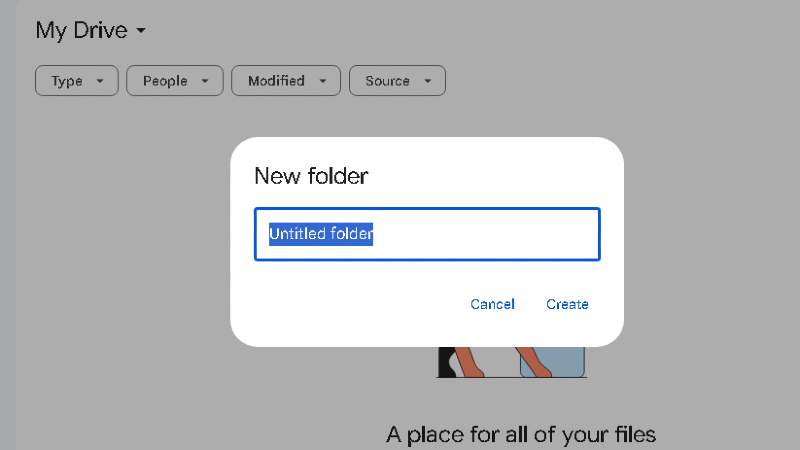
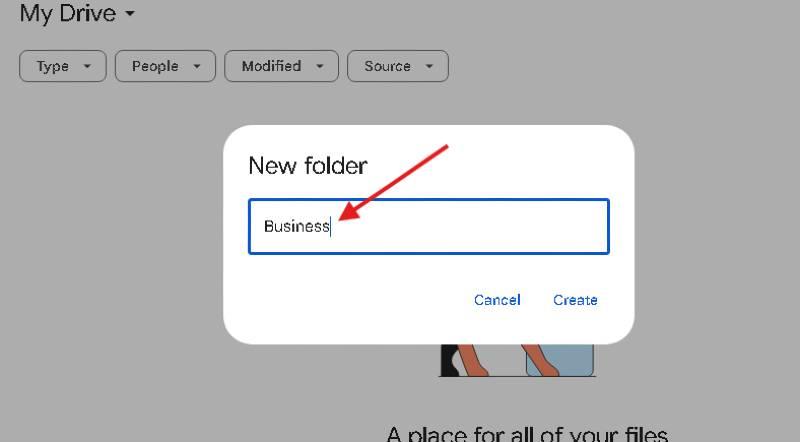
Choose a name for your new folder.
For this example, name your new folder “Business”
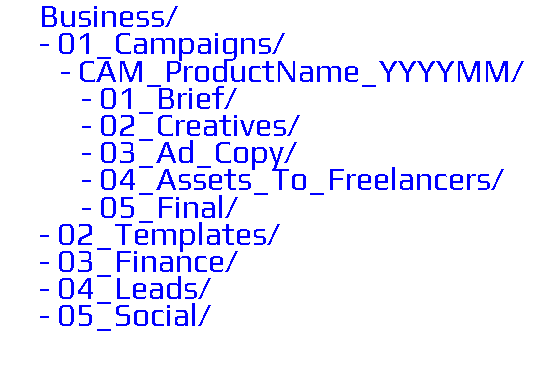
Clear structure saves hours of searching. Here’s a template you can copy:
Tip: Start folder names with numbers so they stay in order.
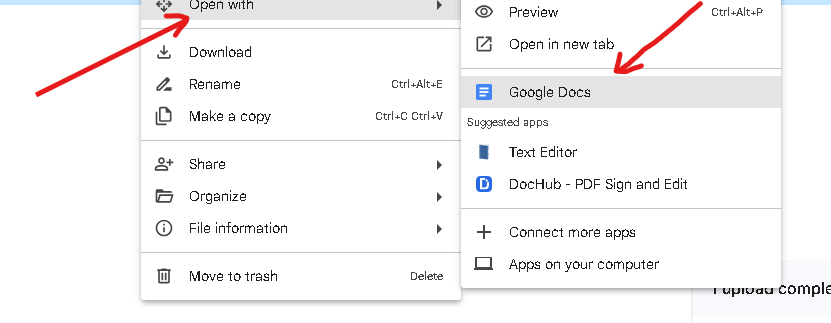
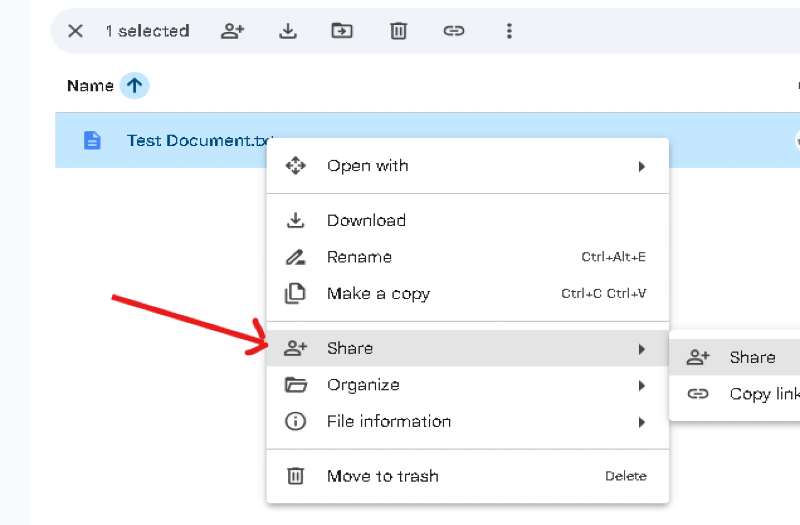
1. Right-click a file > Share.
2. Add an email and pick Viewer, Commenter, or Editor.
3. For link sharing, choose Restricted or Anyone with the link.
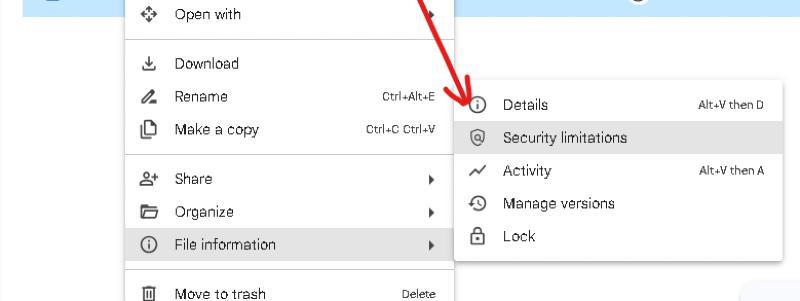
4. Under advanced settings, block downloads and set expiration dates when needed.
5. Use Shared drives (if on Google Workspace) for files the team should own, not just you.
Launch Assets
Affiliate Asset Delivery
Social Media Calendar
Lead Capture
1. Create a Business folder and a 01_Campaigns subfolder.
2. Set up your first campaign folder using the template.
3. Install Drive for desktop and pick sync settings.
4. Build a simple Google Form for lead collection.
5. Share an Affiliate_Pack folder with a trusted partner to test sharing controls.
Google Drive is more than storage. It’s a system that can hold your entire marketing workflow-from campaign briefs to affiliate packs.
If you set it up right, you’ll always know where things are, keep files secure, and share with confidence.
Quick Links
Important Links
Get In Touch
One of the best opportunities provided through online affiliate marketing is the ability to use a variety of strategies and techniques to develop and create a sustainable online business.
Disclaimer: There may be a material connection on this site including pages/posts that may contain affiliate links of which I may receive a commission for anything purchased.
© 2026 Online Affiliate Marketing | Build an Online Presence | Web Development By TEKware